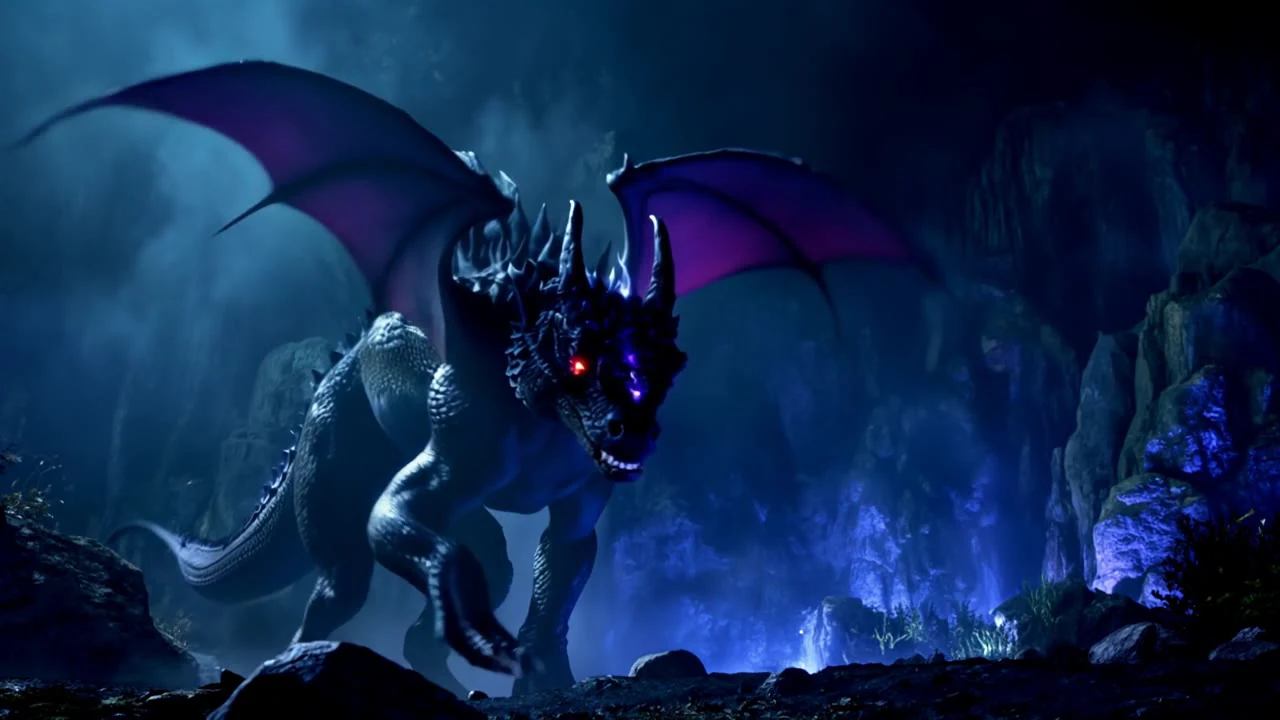
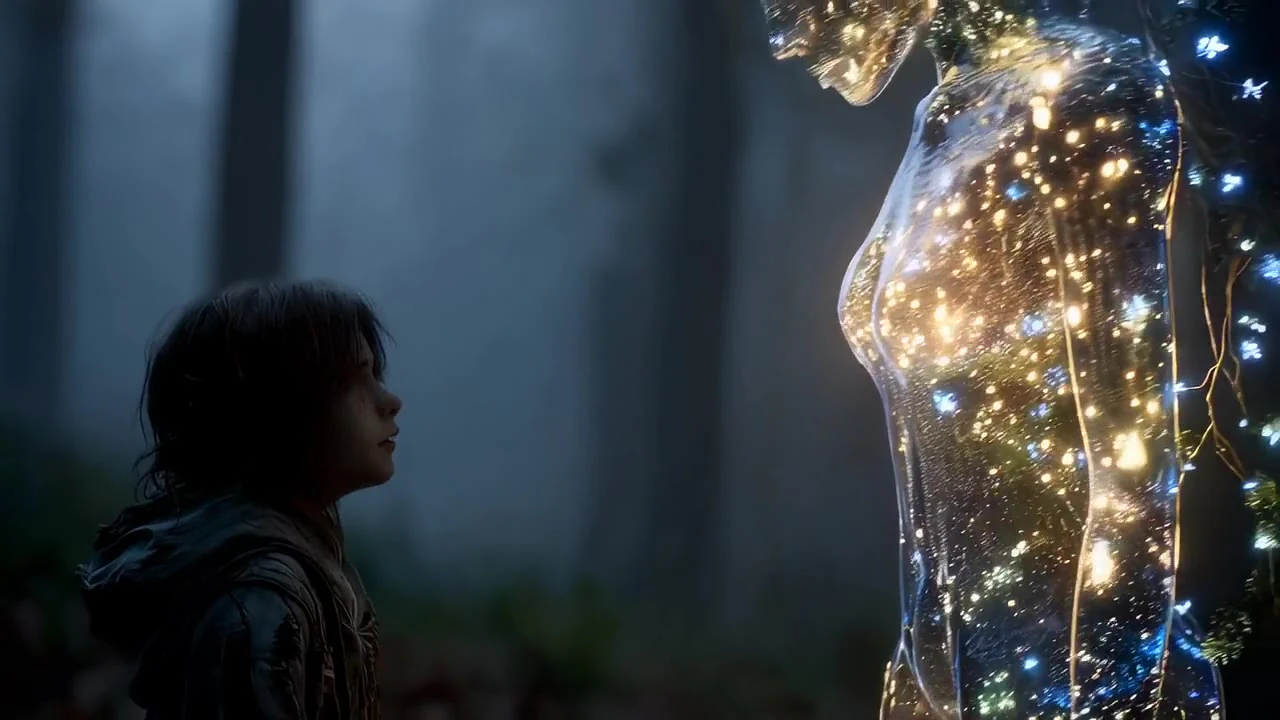
A richer visual brief
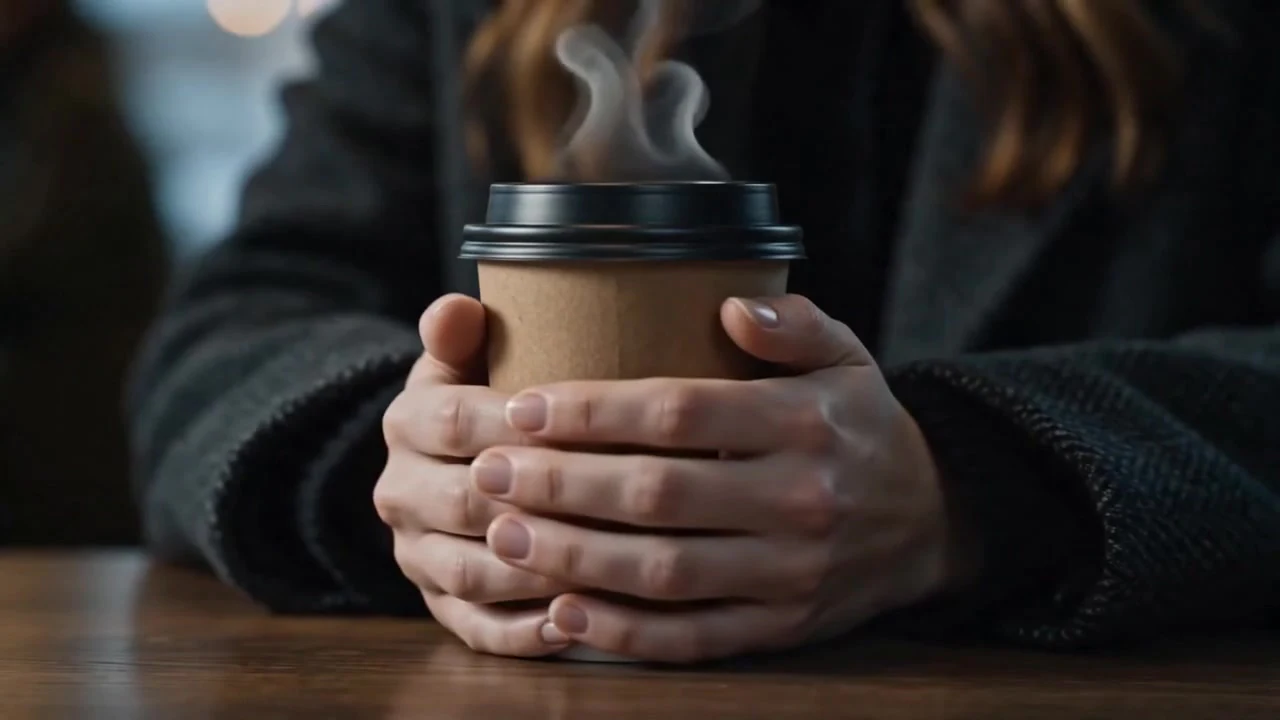
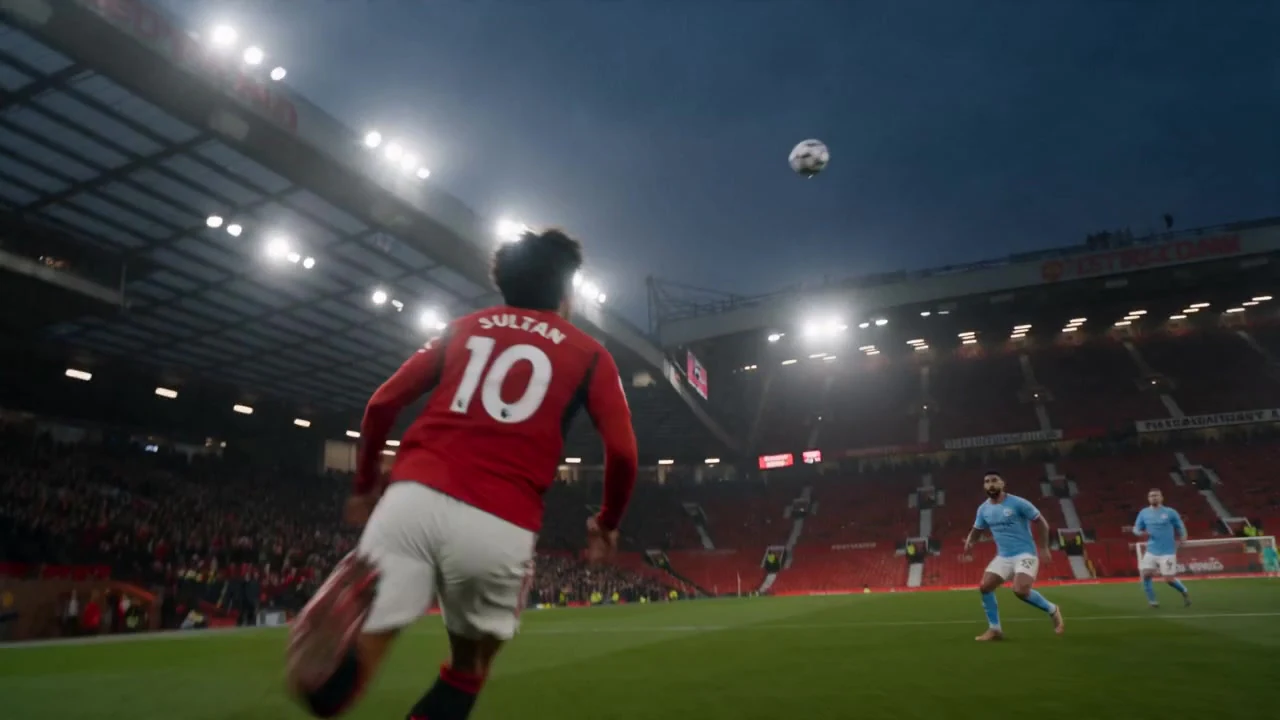
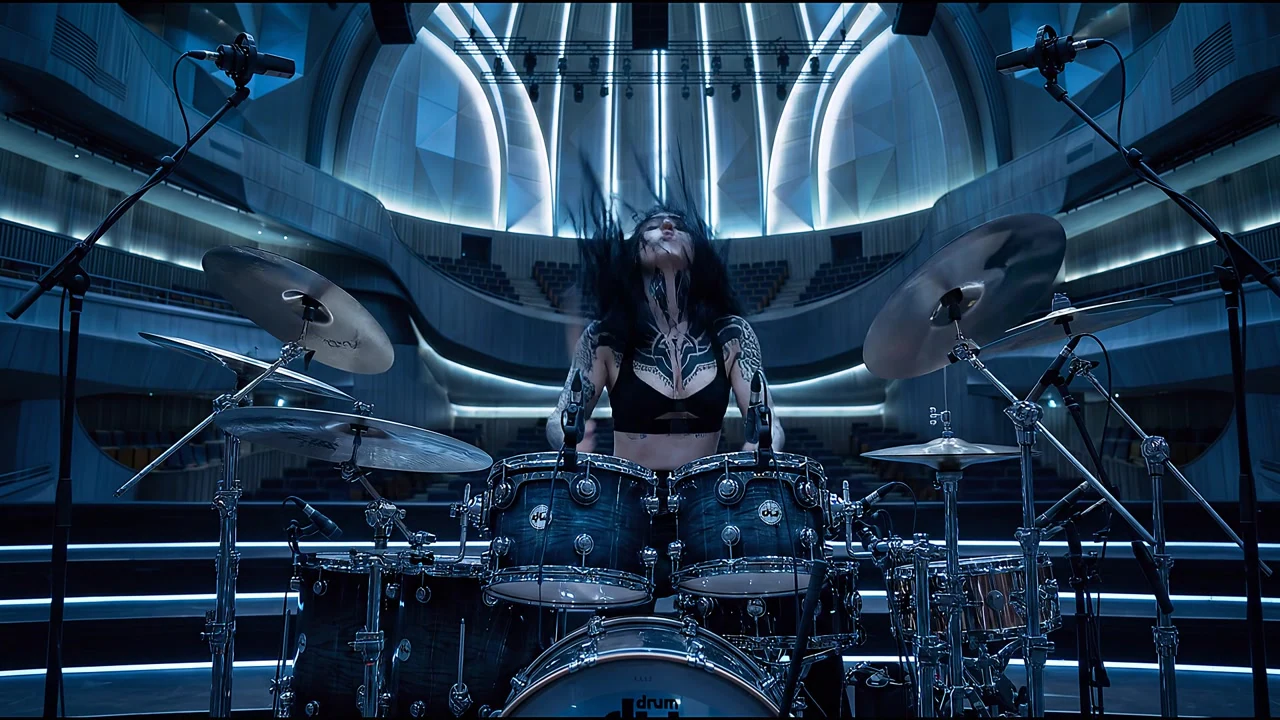
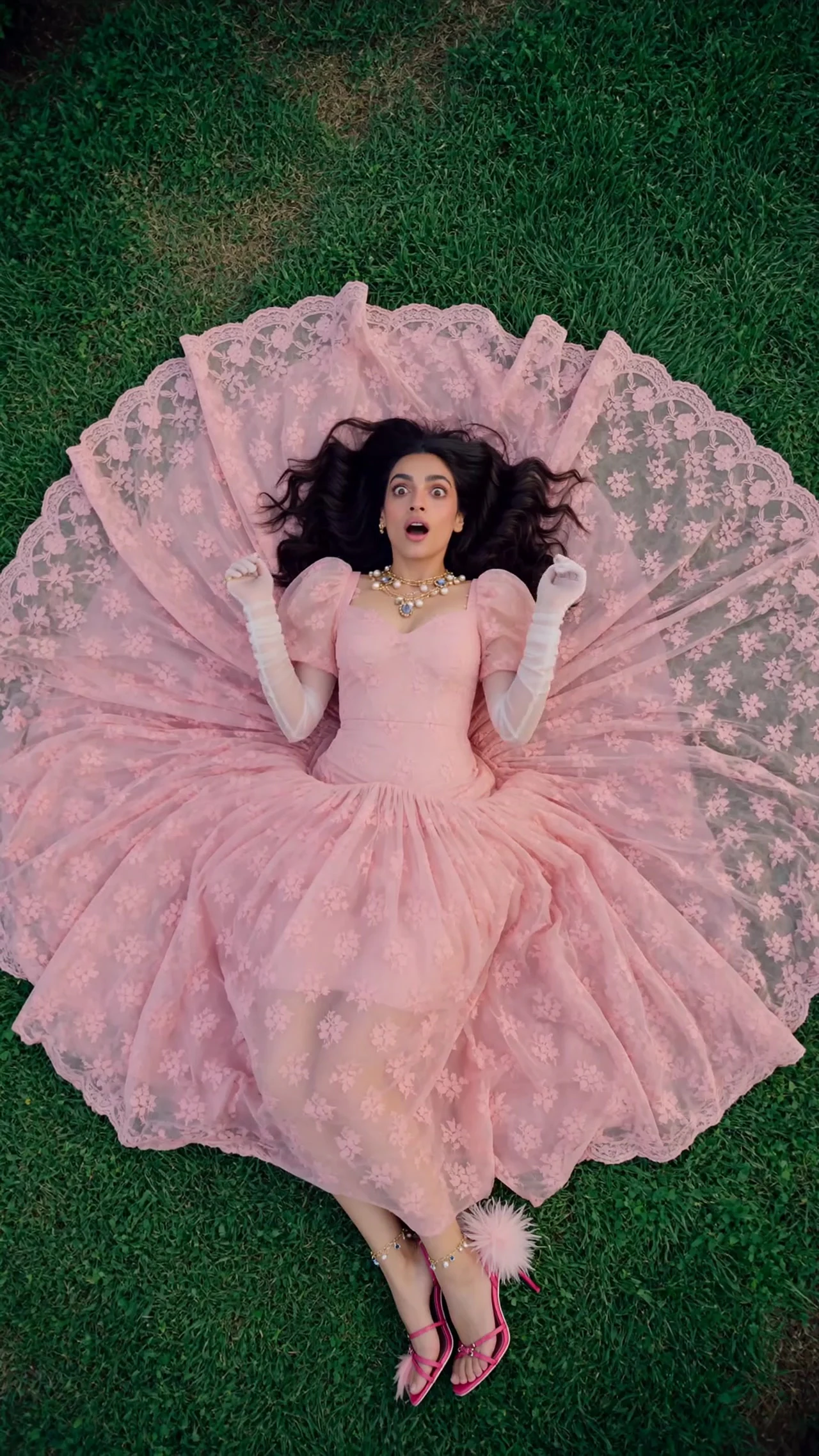
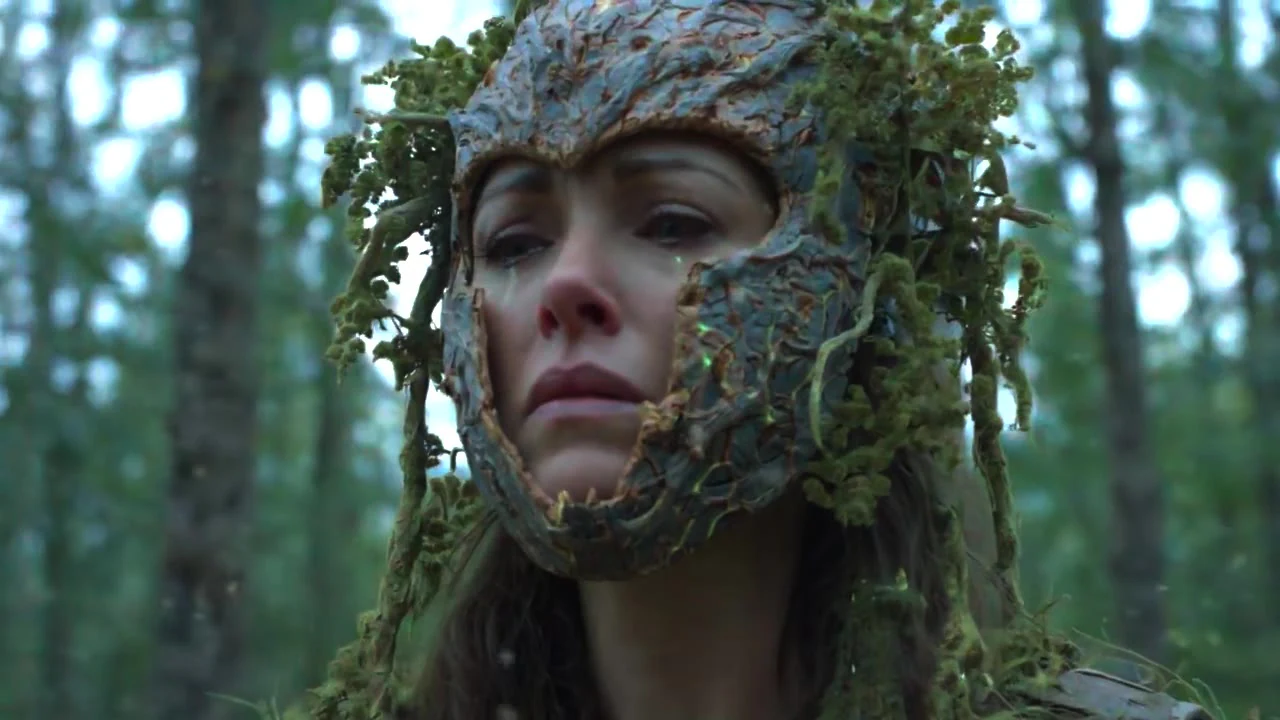
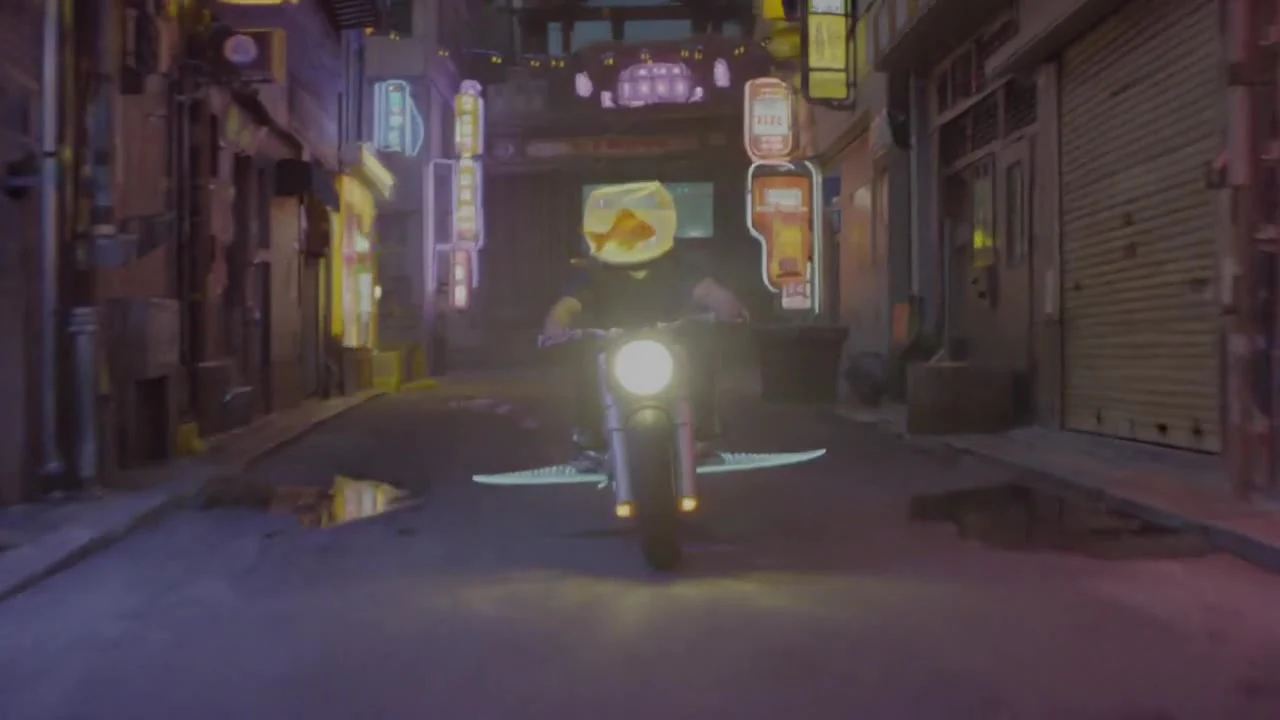
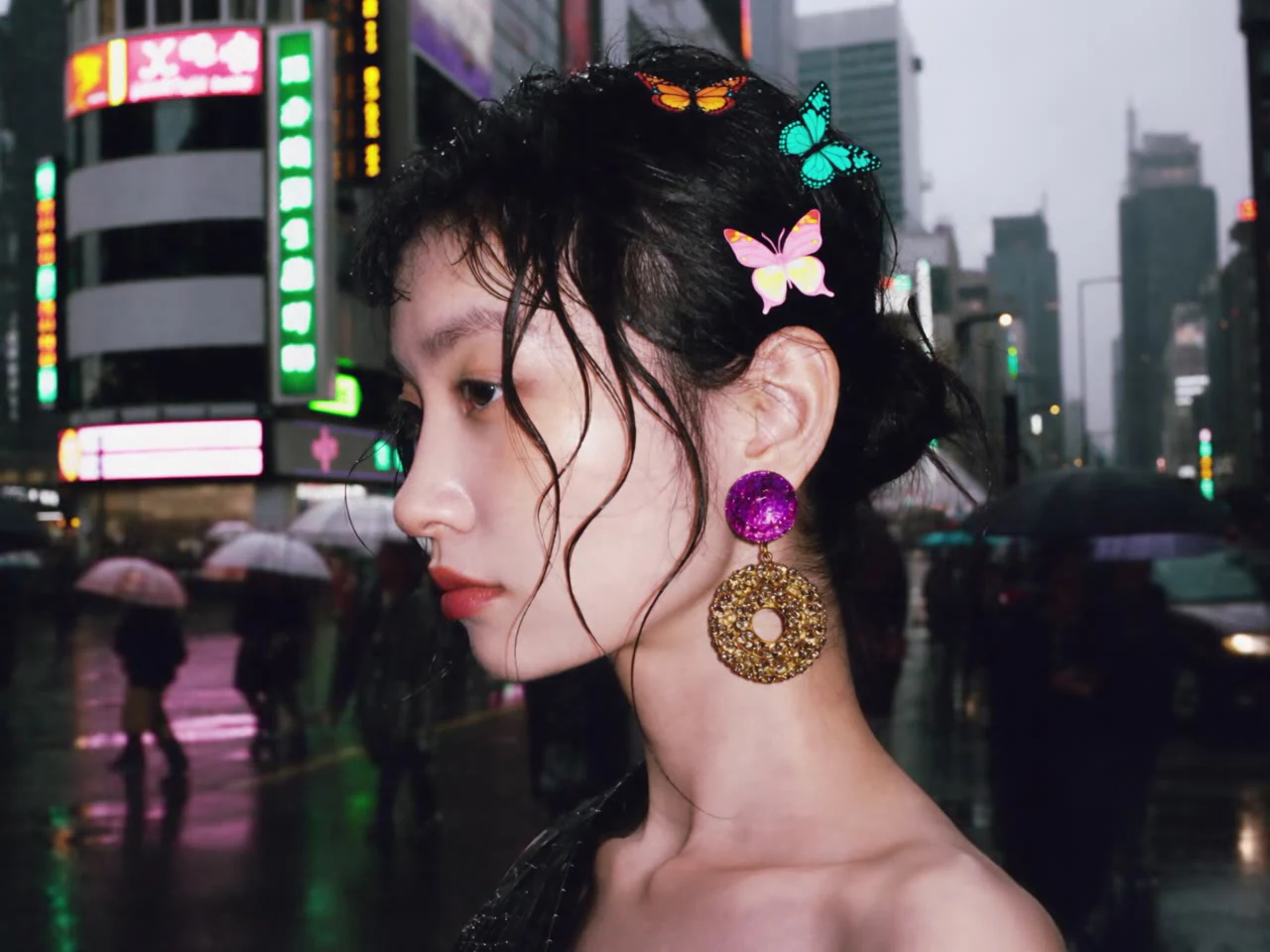
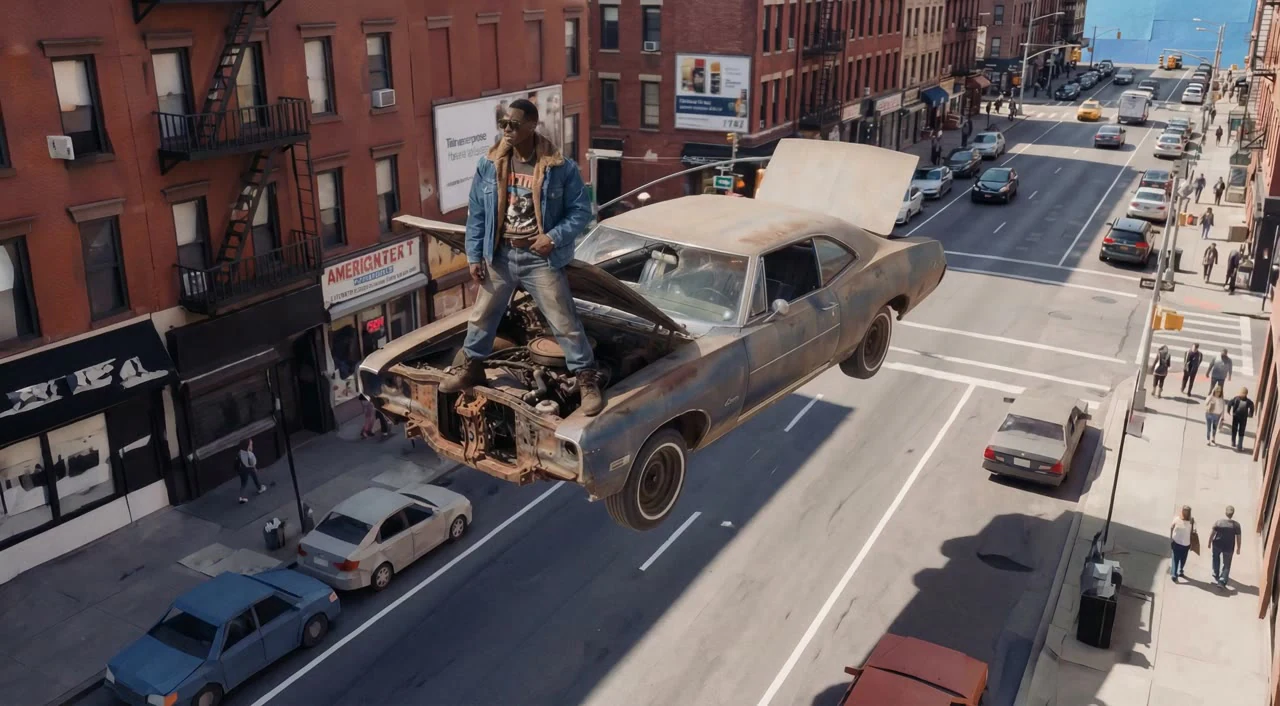
Bring character portraits, product details and scene images into the same creative brief. Multiple references give your prompt concrete visual context, making it easier to explore a shared style and composition.
Vidu Q4 brings text, image-to-video and multi-image references into one AI video tool. Develop character performances, product shots and cinematic scenes with natural-language motion and optional audio.
Vidu Q3 brings scene descriptions, character motion, camera language and optional sound into a short-video workflow. Create from text or photos for narrative ads, animated concepts and social clips.
Vidu Q4 is an AI video tool for creating from text, photographs and multiple image references. It combines scene instructions, visual guidance, motion and optional audio in one workspace, with 4–15-second clips and 480p or 720p settings. Use it for product presentations, character scenes and cinematic concepts.
Bring character portraits, product details and scene images into the same creative brief. Multiple references give your prompt concrete visual context, making it easier to explore a shared style and composition.
Describe a subtle gesture, a camera push-in or a change in atmosphere with everyday language. Combine visible details with motion instructions to develop a shot that expresses your idea.
Explore photographic, animated or cinematic directions, and choose framing for the way your video will be viewed. Keep the source images and scene brief together while developing different creative versions.
Vidu Q4 combines natural-language direction, visual references and expressive motion in one creative tool, opening up new possibilities for character stories, product videos and cinematic scenes.
Describe subjects, actions, atmosphere and camera movement in natural language. Vidu Q4 brings text direction and visual context into the same brief, giving both simple ideas and detailed concepts a clear starting point.
Use portraits, character artwork and product photographs as visual references. Keep recognizable details in your creative brief while exploring new actions and settings for stories, brand concepts and product videos.
Bring composition, lighting and environment into your video direction. Start from a still image or combine scene references to explore depth, atmosphere and visual detail in a moving shot.
Give a still image a gesture, a turning subject or a moving camera. Describe close-ups, tracking shots and gradual reveals to shape the rhythm of a character moment, product introduction or cinematic concept.
Explore photographic, animated and cinematic ideas through images and prompts. Define color, materials and mood for a fashion scene, a stylized character or a product campaign, and develop variations from the same visual brief.
Combine up to nine image references to describe the people, products and places in a scene. Add dialogue or ambient sound directions with optional generated audio, so movement and sound share the same creative idea.
Explore expressive motion, cinematic camera directions and character scenes from your text and images.
Compare creative focus, input modes, prompt direction and clip settings to choose your next video workflow.
| Creative capability | Vidu Q4 | Vidu Q3 |
|---|---|---|
| Creative focus | Image-led scenes, product visuals and character reference creation. | Text-led scenes, character actions and narrative short clips. |
| Prompt understanding | Natural-language direction for subjects, materials, lighting and camera movement. | Natural-language direction for scenes, actions, pacing and sound. |
| Image-to-video | A first frame defines the opening; a last frame is optional. | A first frame defines the opening; a last frame is optional. |
| Image references | Up to nine images for characters, products and locations. | Up to nine images for subjects and scene details. |
| Motion and audio | Motion and camera prompts with optional generated audio. | Action and scene-sound prompts with optional generated audio. |
| Clip settings | 4–15s · 480p / 720p | 4–15s · 480p / 720p |
| Best creative uses | Product shots, character concepts, illustrated scenes and brand presentations. | Story moments, narrative ads, animated concepts and social content. |
Describe a character reaction, a product reveal or a change in the scene. Choose a camera move that follows the main action.
Bring character and style references into every shot.
Set the tone with dialogue and native scene audio.
Keep your subject references together for the next scene.
Build atmosphere through composition, light and movement.
Vidu Q4 · Vidu Q3
A subject turning and a camera pushing in are different instructions. Put both in the prompt, then choose the duration, framing and audio settings.
Open the creative workspace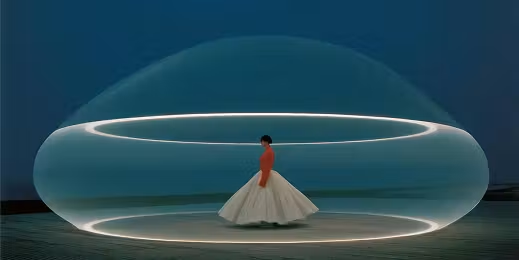 16:9
16:9
Create video clips from an idea or reference image, then edit them into short films and social posts.
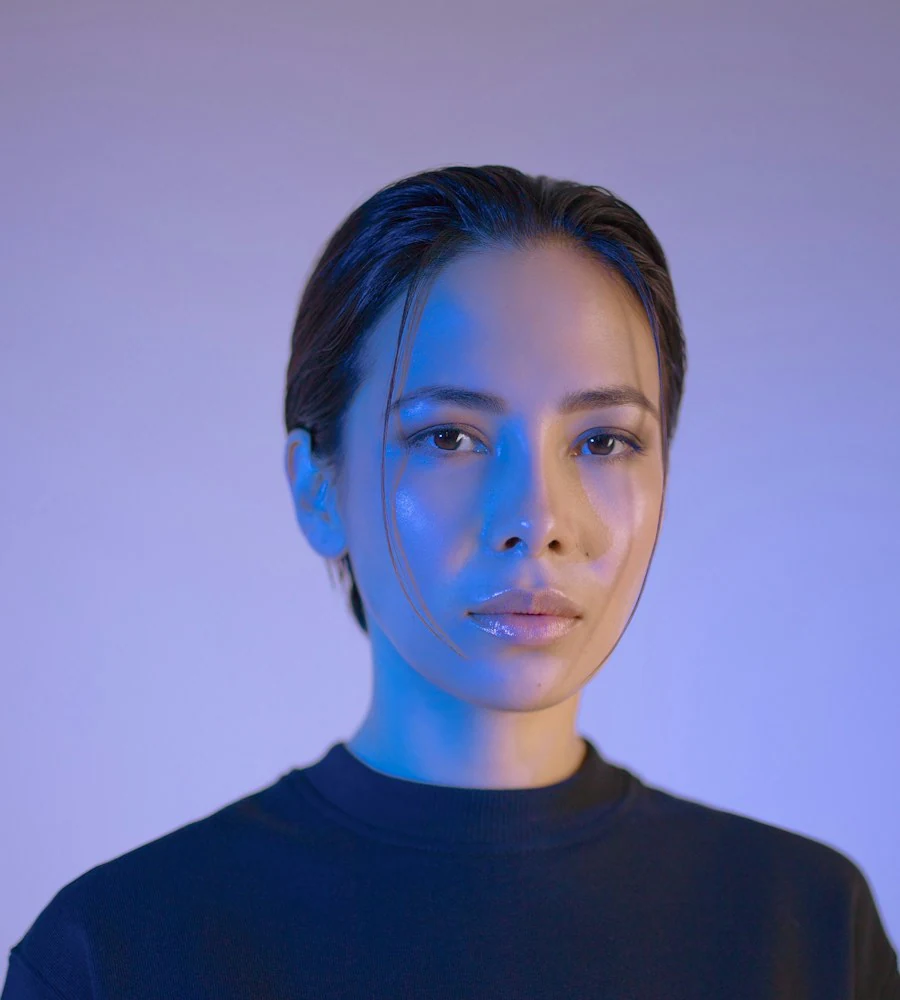
Try different ad scenes with the same product assets, and compare the concepts before a campaign.
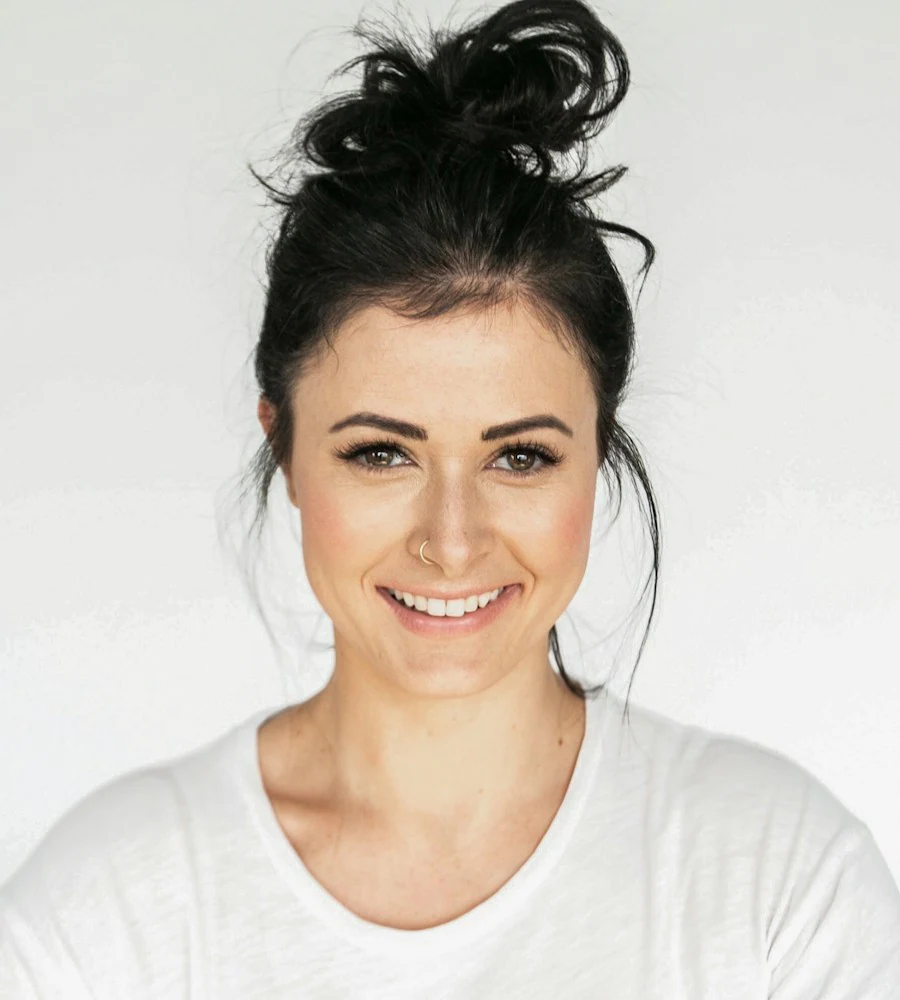
Add camera movement and use-case scenes to product images for store and product-page videos.
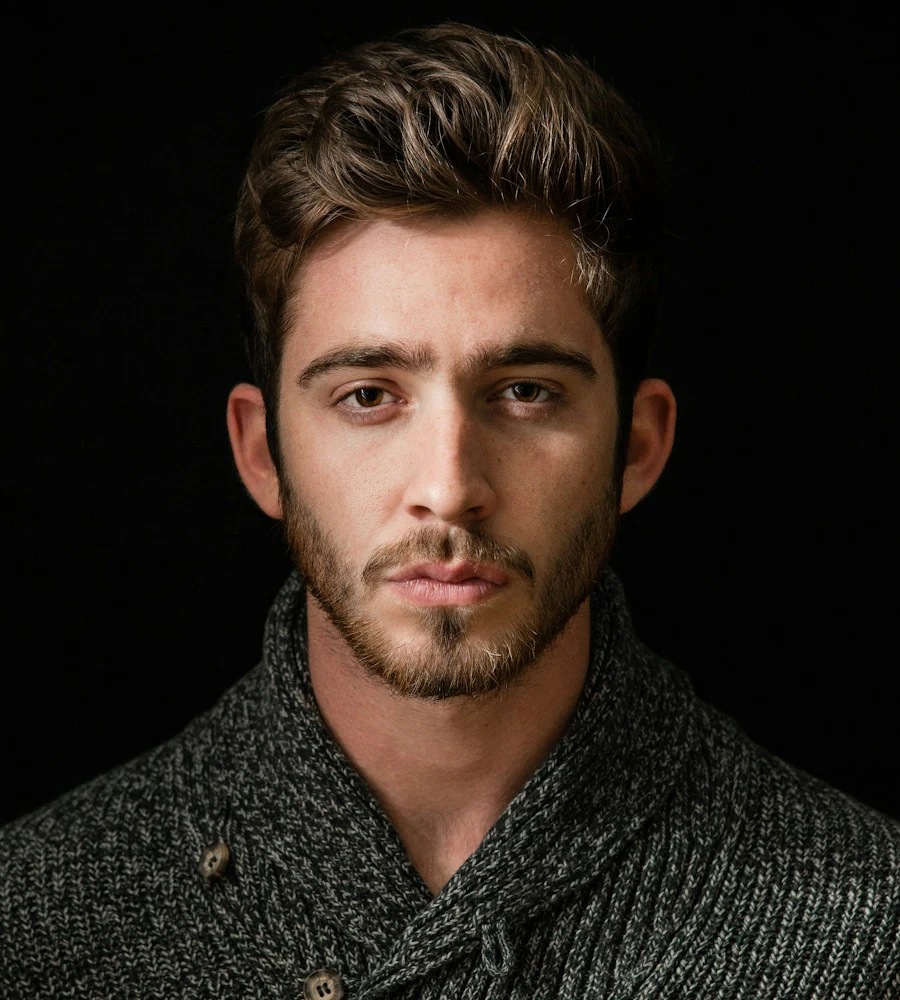
Generate concept shots for pitches, and use short visual studies to discuss framing and pacing with clients.
Use the responsive Vidu Q4 workspace on your phone, tablet or desktop.
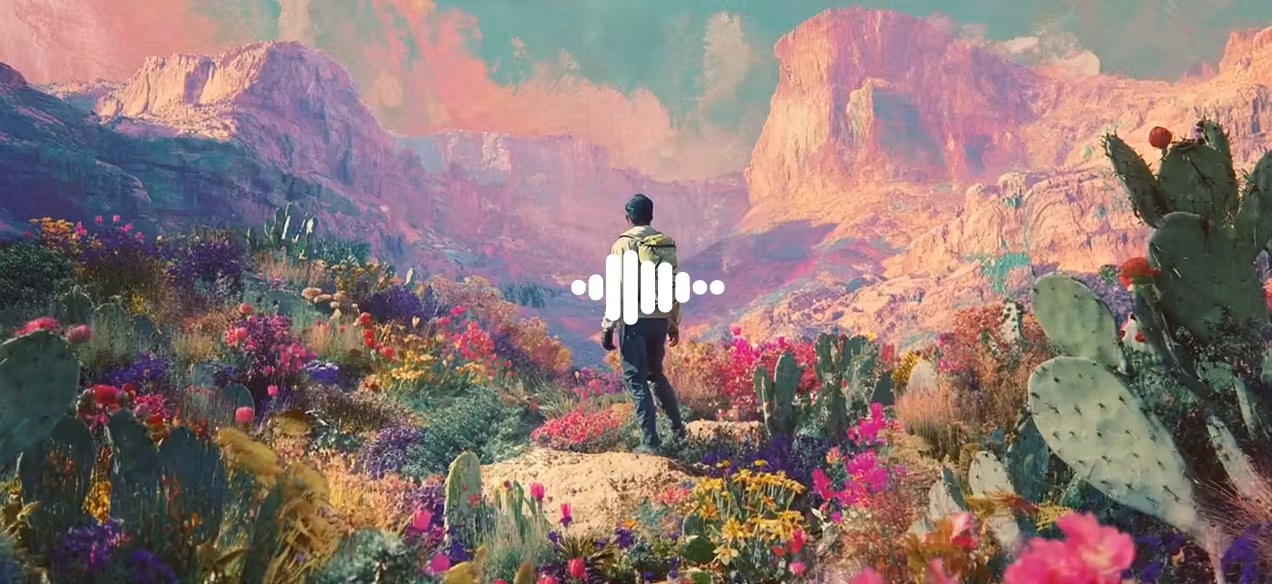
Find answers about Vidu Q4 video creation, visual references and creative uses.
Vidu Q4 is an AI video creation tool that combines natural-language direction and visual references. Start from text, a photograph or multiple images to develop product scenes, character stories and social videos with motion, camera and sound direction.
Vidu Q4 brings text, first-frame images and multiple visual references into one workspace. Choose an input for the scene you want, combine it with motion and camera directions, and keep the creative brief available as you explore different versions.
It can be part of a creative workflow for advertising concepts, product presentations, storyboards and social content. Review the visuals and sound, then add editing, titles and brand graphics to suit the delivery requirements of your project.
Use text to video for a written scene, image to video when a photo should define the opening, or reference to video when multiple images describe subjects and style. Image-to-video accepts an optional ending frame; reference mode supports up to nine images.
Yes. Begin with a clear image or a short scene description, then describe one main action and a camera move. You can explore the input modes, adjust the clip settings and save a draft without needing animation or video-editing experience.
Processing time varies with clip length, resolution, scene complexity and the task queue. There is no fixed completion time for every request.
The workspace offers 480p or 720p, 4–15-second clips and multiple aspect ratios for landscape, portrait and square content. Clear source images and focused prompts help establish the visual details; review the full clip before using it in a final project.
Reference mode accepts up to nine images to guide characters, products and surroundings. Identify the role of each image and describe how the subjects interact. Images provide visual direction, while the prompt defines the action and relationships in the scene.
Explore the creative templates, image-to-video and reference-to-video guides, or the Vidu Q4 model page. They explain how to prepare images, describe movement and organize a scene, with examples you can adapt to your own project.